
Managed Service Only Technical Implementation: Meta Ads Manager
OVERVIEW
This is for Data Marketplace Buyer Managed Service Clients only. If you are a Spherical Platform Customer, Data Seller, or have your own Data Marketplace Buyer seat(s), please follow the instructions here.
Lotame's productized Meta Ads integration allows marketers to receive custom audiences built by our data experts in order to run more effective advertising campaigns across Facebook and Instagram. In order to receive custom audiences, follow the instructions listed below.
Integration Notes
Inbound or Outbound: Outbound (From Lotame to Meta)
IDs Supported By Meta: MAIDs and HEMs
Single or Multi-Destination: Multi-Destination (Lotame can send custom audiences to multiple Meta accounts)
Export Refresh Cadence: Daily
Reporting Audience Usage (Impression Reporting):
Lotame Data Marketplace Buyer Managed Service customers must provide monthly reporting for impressions served per audience (or "Usage") in accordance with the Master Agreement (refer to the ‘Reporting’ section under ‘Fees and Payment Terms’ in the Service Order for Data Marketplace Buyer Managed Service for details).
Impression ("usage") reporting for this integration can be enabled via Meta Ads Reporting. Follow the instructions listed here to report usage to Lotame.
Pre-requisites
In order to enable the Lotame integration with Meta Ads, you will need to:
Have a Facebook Business Manager account
Have a Meta (Facebook) Ads Account linked and claimed by your Business Manager account.
- Have accepted the Custom Audience terms for each Ad Account.
Setup Steps
In order to set up the integration to receive custom audiences in your Meta (Facebook) Ads Account, Lotame needs to receive the following information:
- Destination name
- Your Meta (Facebook) Ad Account ID
- API Version
- Meta (Facebook) System User Token
Your Lotame representative will create and share a document for you to securely share the above information.
Note: If you have already set up a Marketing API app and System User and wish to integrate a new Ad account, follow the "Adding Additional Ad Accounts" section further down this page for your simplified instructions.
Destination name to use in Lotame's Spherical platform
The destination name is the name you want Lotame to use to identify your Meta (Facebook) Ad Account. This is particularly important if you plan to request custom audiences for multiple Meta (Facebook) Ads accounts so they can be easily differentiated by our data team when activating audiences on your behalf.
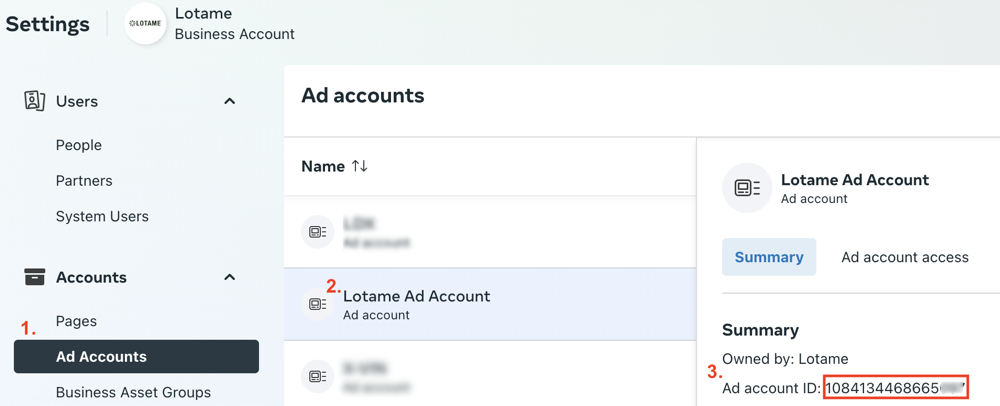
Retrieve the Ad Account ID
This is found by doing the following on the Ad Accounts page in your Business Settings
- Below Accounts, select Ad Accounts in the left menu
- Select the Ad Account Name you are configuring for use with Lotame
- Copy the Ad Account ID on the right
Create the Ad Application and Access Token
Now, you have 2 of the 4 items you need to provide to Lotame in order to configure the Meta integration (Destination Name and Ad Account ID). In the next step, you will setup your Meta Ad application in order to retrieve the last 2 values (API version and System User Token). Please follow the instructions below.
As of the writing of this documentation, Meta has two different ways to configure this. Hereby considered the v1 and v2.
Create Application and Retrieve Token (v1)
When you navigate to https://business.facebook.com/latest/settings/apps, if the page looks like below:
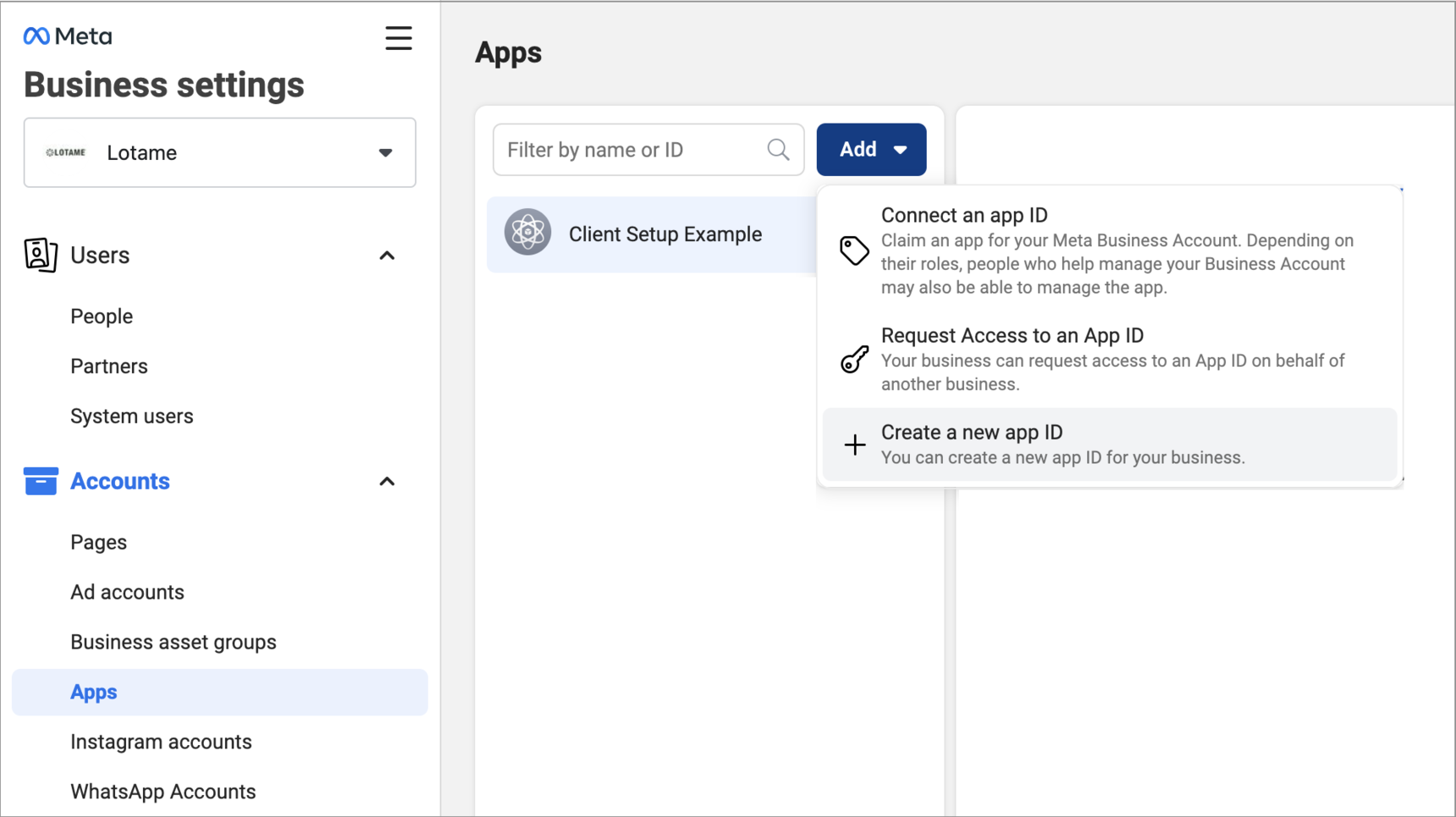
Then navigate to this page in our v1 documentation for the setup steps.
Create Application and Retrieve Token (v2)
If your page looks like the one below:
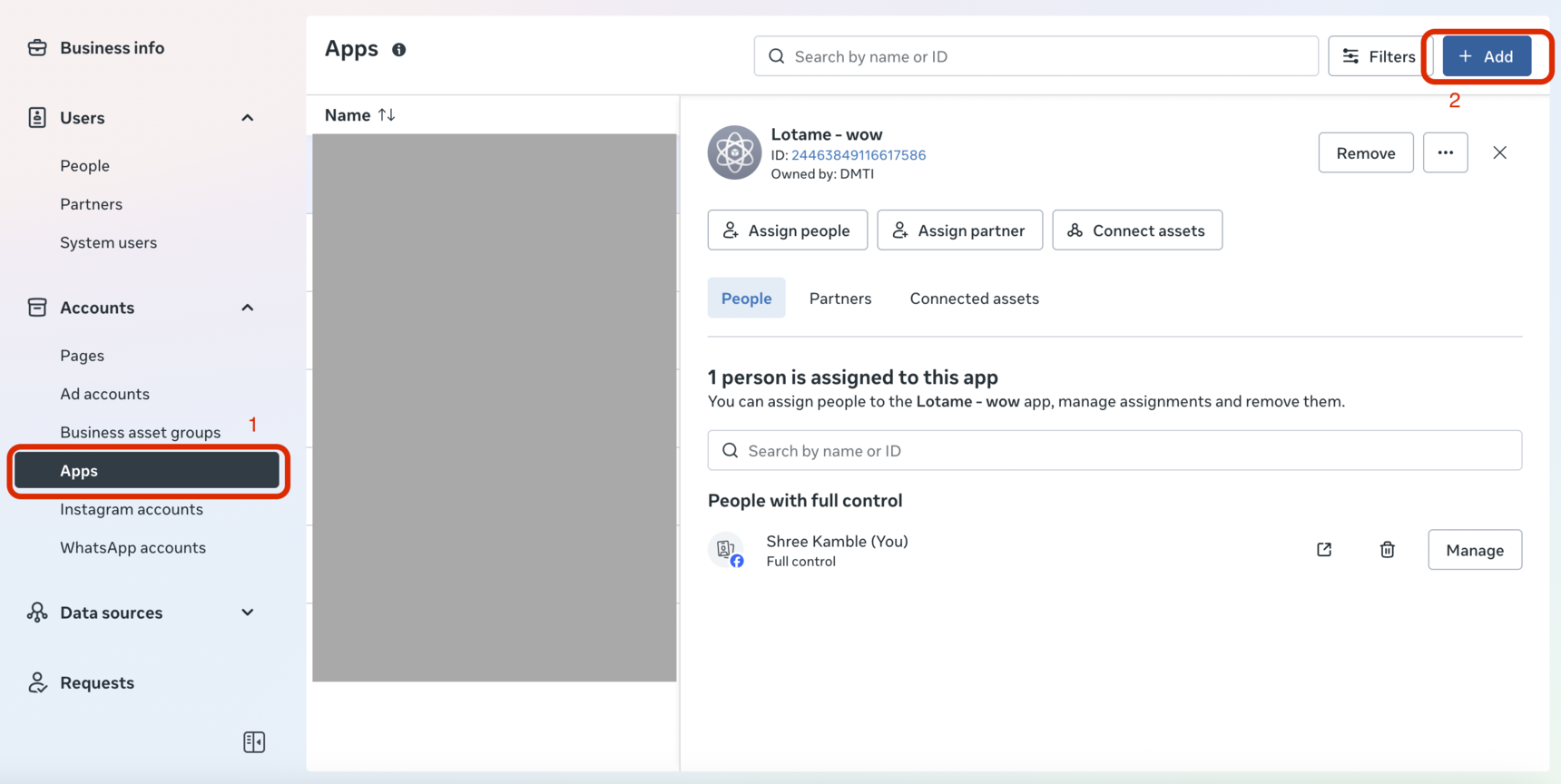
Then navigate to this page in our v2 documentation for the setup steps.
Request Custom Audiences using the Meta (Facebook) Ads Integration
- Once a contract is executed and the integration details above are complete, Marketers can request custom audiences by sending details about your audience targeting needs and criteria to the appropriate regional alias below. You can also reach out directly to your local Lotame Data Sales Representative.
North America • USCANdataRFP@lotame.com
EMEA • EMEAdataRFP@lotame.com
LATAM • LATAMdataRFP@lotame.com
APAC • APACdataRFP@lotame.com
- Once our data experts have confirmed the details of your custom audience(s), they will export the audience(s) directly to your Meta Ads Seat integrated per the above instructions (~24-48 hours).
- Your audience(s) will automatically be created in your Meta (Facebook) Ads account (~1 hours).
Note: It's not unusual to sometimes see low match rates when delivering data to Meta Ads. This can be due to several reasons, including but not limited to:
Meta Ads only count unique visitors matched to individual accounts across Meta platforms within a selected time frame. (For example: Two Mobile Advertising IDs or a Mobile Advertising ID and HEM might be one individual.)
Meta Ads also exclude people who have opted out of Meta ads based on website and/or app usage.
Not all qualified individuals may be active across, or utilize Meta.
On average, the typical audience takes between one week to 30-days to fully ramp. Where possible, try building a ramp up period into any campaign timelines to ensure maximized volumes. Should you require additional volume to meet your targeting needs, please reach out to your regional data sales experts ASAP- as they can supply recommendations to help scale you audience(s).
How to locate your audiences in Meta (Facebook) Ads account
Once exported, your custom audiences should be available in your Meta (Facebook) Ads account within one hour.
To find your custom audiences within Meta (Facebook) Ads, Business Manager > All tools > Assets > Audiences.

How to report the usage of your audience in Meta (Facebook) Ads
All clients are required to report the impressions served ("usage") of all the audiences requested and targeted across Meta (Facebook and Instagram) on a monthly basis.
On the first of each month, Lotame will send an email requesting usage for the previous month as well as a deadline for submission. Impression reporting for this integration can be enabled via Meta Ads Reporting. Follow the instructions here to report usage to Lotame.
How to manually create a Meta (Facebook) usage report:
Impression ("Usage") reporting for this integration can be enabled via Meta Ads Reporting. Follow the instructions here to report usage to Lotame. If you need to manually create impression reporting, see steps below:
- Log in to your Meta (Facebook) Ads Manager account and navigate to Ads Reporting.
Click Create Report
From the Choose a layout select “Pivot Table” and click Continue

In the upper-left corner, Enter a name for your report, and select all of the ad accounts that are receiving custom audiences from Lotame.
- Select last month in the upper-right corner

Under the Breakdowns tab on the left side of the page, select “Campaign Name” and “Ad Set Name”
- Under the Metrics tab on the left side of the page, select “Impressions” and “Included Custom Audiences”

Click the Export icon in the upper-right corner.
FAQs
Please contact support@lotame.com for questions about this integration.
Please contact your local Lotame Data Sales Representatives for custom audience inquires:
North America • USCANdataRFP@lotame.com
EMEA • EMEAdataRFP@lotame.com
LATAM • LATAMdataRFP@lotame.com
APAC • APACdataRFP@lotame.com
Related:
Managed Service Only Billing Implementation: Meta Ads Manager
Content aside
Categories
-
- Managed Service Customers
- Social App Audience Activation - Data Marketplace Buyer
- Managed Service Only Technical Implementation: Meta - Create Application and Retrieve Token (v2)
- Managed Service Only Technical Implementation: Meta - Create Application and Retrieve Token (v1)
- Managed Service Only Billing Implementation: Meta Ads Manager
- Managed Service Only Technical Implementation: Meta Ads Manager
- Managed Service Customers
- 1 yr agoLast active
- 672Views
- 1 Following