
Managed Service Only Technical Implementation: Meta - Create Application and Retrieve Token (v1)
OVERVIEW
Meta has two ways to create an application and retrieve the token (v1 and v2). This is for the new version with a screen like below at this link: https://business.facebook.com/latest/settings/apps.

If you do not see that version of the page, refer to our other page, which has instructions for the v2 way to configure.
Create the Application and Retrieve the API version
Create a Marketing API App
One-time setup from your Business Manager settings for all your Meta (Facebook) Ads accounts.
- Below Accounts, click Apps.
- Click the Add button and choose Create a new app ID.
- For the use case, choose Other.

- For type, choose Business. In the details, name your app "Lotame integration" or similar, add your email, select your business, and click Create App.

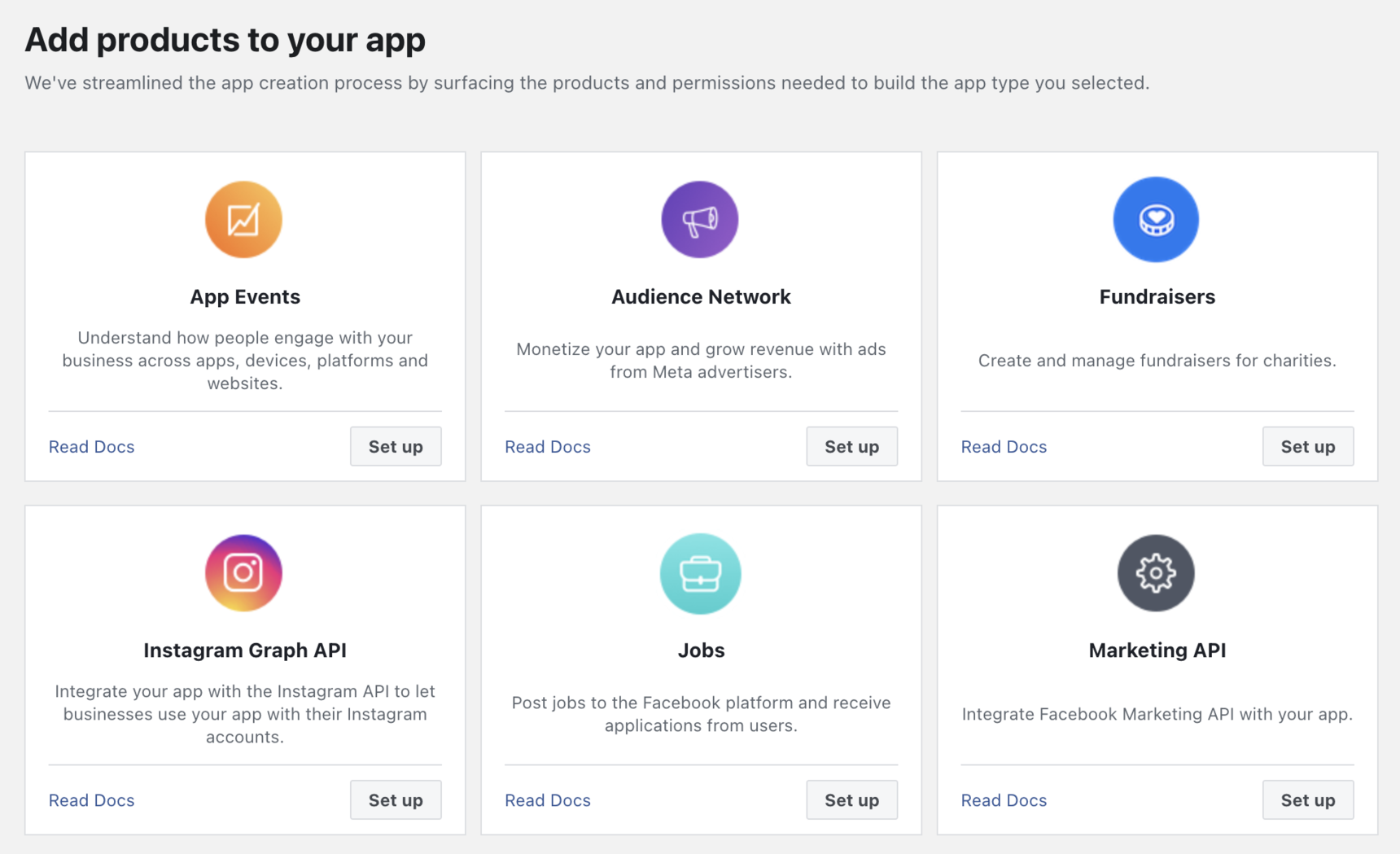
- You will arrive at a view like this. Add the Marketing API product by clicking "Set up."
Retrieve API Version
Once set up, you will be directed to the Meta for Developers portal (https://developers.facebook.com/). On this page, go to App Settings → Advanced, and note your app’s API version. You will need to provide it to Lotame as part of this setup.

Finish Application Configuration
Meta also requires you to set your app to Live Mode. To switch to Live Mode, go to your App Dashboard and find the App Mode toggle at the top of the page.
In order to set the app to Live Mode, Meta requires a Privacy Policy URL. The Privacy Policy URL can be updated by following these steps:
Below App Settings, click Basic
Input a URL in the 'Privacy Policy URL' field

Ultimately, the URL does not matter because the app will not be client-facing (That field is designed to be shown to users who interact with the app, which does not apply in this case). If your organization does not have a privacy policy, you can use the following URL - https://www.lotame.com/privacy/privacy-notices/services/
Create a System User and Access Token
Create System User
One-time setup from your Business Manager settings for all your Meta (Facebook) Ads accounts.
- Below Users, click System Users.
- Click Add.
- Give a name to the system user ("Lotame System User," for example) and select the Employee role, then click Create system user.

NOTE: If your account has reached the limit for System User(s), you can re-use an existing System User for this integration and follow the steps outlined below.
Add System User Permissions
Setup from your Business Manager settings (https://business.facebook.com/settings), required for new ad accounts:
- Select your System User created for Lotame under Users → System Users.
- Click Add assets, then Ad accounts in the left menu.
- Select your ad account(s) and enable Manage campaigns.
If this is your first time setting up a System User to use in Lotame, continue to the next step. If you have completed setup before and only wish to integrate new ad account(s), click Save changes - you are ready to share details with Lotame.
- Now click Apps in the left menu.
- Select the app created for Lotame, enable Develop app, and click Save changes.

Generate token
From your Business Manager settings (https://business.facebook.com/settings):
- Select your System User created for Lotame under Users → System Users.
- Click Generate new token.

- In the pop-up perform the following:
- 1) Select the app created for Lotame.
- 2) Select Permanent for token expiration.
- 3) Scroll down and check the ads_management permission.
- 4) Click the Generate token button.

- Copy and save the token to share with Lotame.
Note: You may revoke access from the Lotame System User's token at any time by clicking on Revoke tokens in the System User view. WARNING: This will nullify ALL tokens previously created for the System User. It is not necessary to revoke access to previous token's before generating a new one.
Share Details to Lotame for Final Configuration
You now have all the information needed to integrate your Spherical account and your Meta (Facebook) Ads Account. The information to share with Lotame should include:
- Destination name
- Your Meta (Facebook) Ad Account ID
- API Version
- Meta (Facebook) System User Token
Your Lotame representative will create a shared document with you to securely pass the relevant information. DO NOT email these details directly, or they will be considered compromised, and a new key will need to be generated
Remember to accept Meta's Custom Audience Terms Of Service in your ad accounts view at https://business.facebook.com/ads/manage/customaudiences/tos/?act=<ANY_AD_ACCOUNT_ID_YOUR BUSINESS_OWNS>, or exports will fail. (Please note that this is a one-time action)
Once your Lotame representative confirms your account is configured on the Lotame side, you can begin requesting custom audiences.
Please contact your local Lotame Data Sales Representatives for custom audience inquires:
North America • USCANdataRFP@lotame.com
EMEA • EMEAdataRFP@lotame.com
LATAM • LATAMdataRFP@lotame.com
APAC • APACdataRFP@lotame.com
Adding Additional Ad Accounts
To add one or more additional Ad Accounts, you will perform all of the above steps minus creating a System User. You re-use the existing System User and provide it access to each additional Ad Account you create.
As above, work with your Lotame Representative to provide these values for each additional Ad Account.
- Destination name
- Your Meta (Facebook) Ad Account ID
- API Version
- Meta (Facebook) System User Token
Content aside
Categories
-
- Managed Service Customers
- Social App Audience Activation - Data Marketplace Buyer
- Managed Service Only Technical Implementation: Meta - Create Application and Retrieve Token (v2)
- Managed Service Only Technical Implementation: Meta - Create Application and Retrieve Token (v1)
- Managed Service Only Billing Implementation: Meta Ads Manager
- Managed Service Only Technical Implementation: Meta Ads Manager
- Managed Service Customers
- 8 mths agoLast active
- 301Views
- 1 Following