
Managed Service Only Technical Implementation: Meta - Create Application and Retrieve Token (v2)
OVERVIEW
Meta has two ways to create an application and retrieve the token (v1 and v2). This is for the new version with a screen like this at this link: https://business.facebook.com/latest/settings/apps.
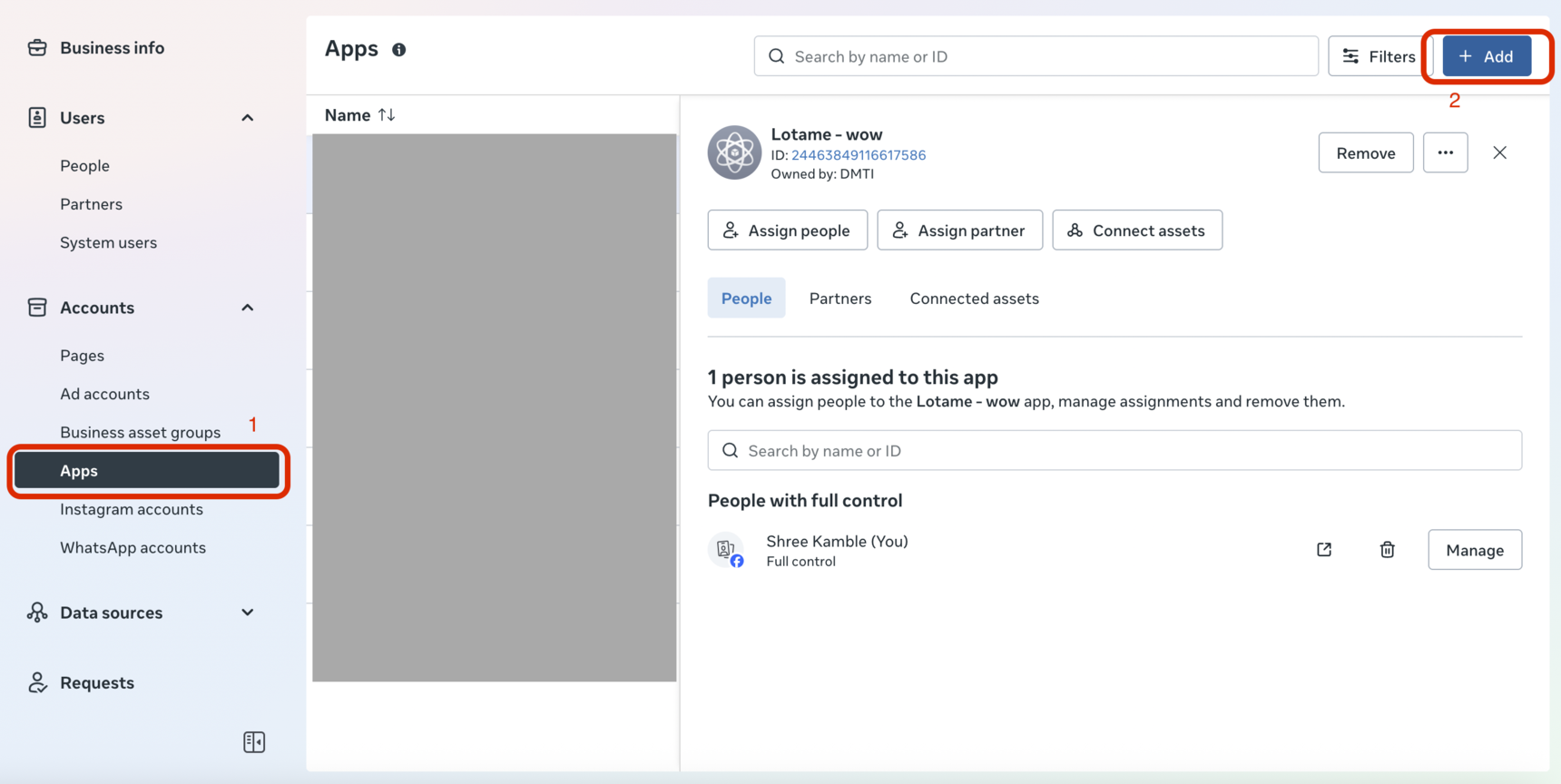
If you do not see that version of the page, refer to our other page, which has instructions for the v1 way to configure.
Create an Application and retrieve the API Version
Create the Application
Navigate to the following URL: https://business.facebook.com/latest/settings/apps
- In the left-hand menu, select Apps and then click on the Add button to begin the app creation process.
- Select Create a new app ID.
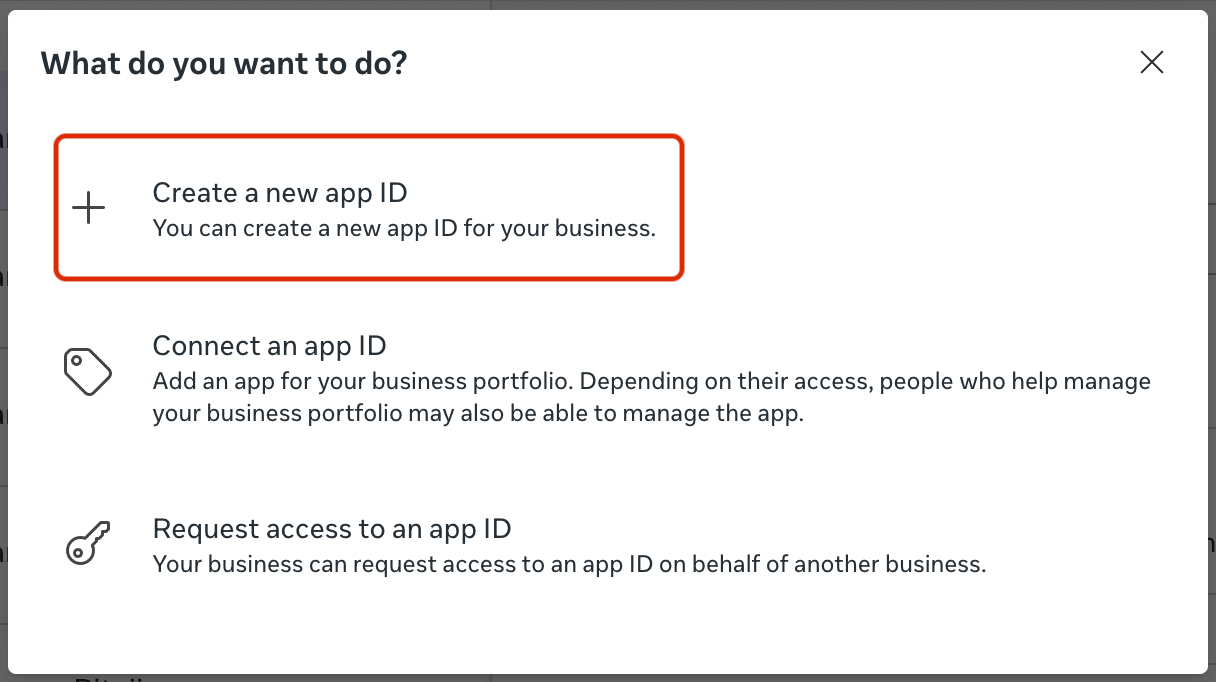
- On the next screen, enter a name for your app, then click Next.
- Following that select the Create & manage ads with Marketing API option and again click next.
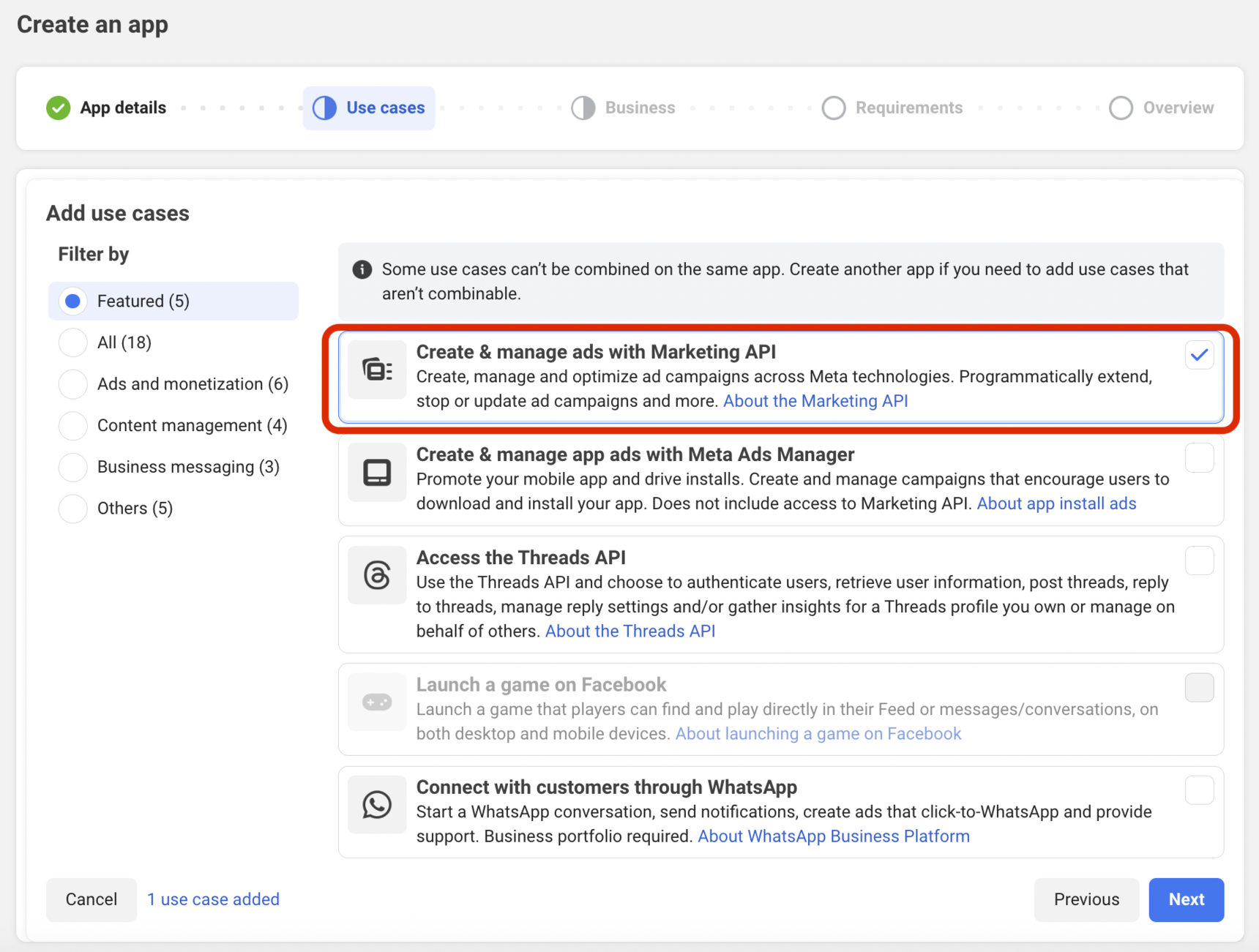
- On the next screen, select the appropriate Business Portfolio option (you may only have one) and click Next.
- On the next screen, review the requirements, if any, and then select Next.
- On the Overview page that appears next, review it for correctness, then click the Go to Dashboard button.
Configure the Application
You should now find yourself on the Dashboard, looking at a screen similar to the one below. Next, there are three steps in order to configure the App.
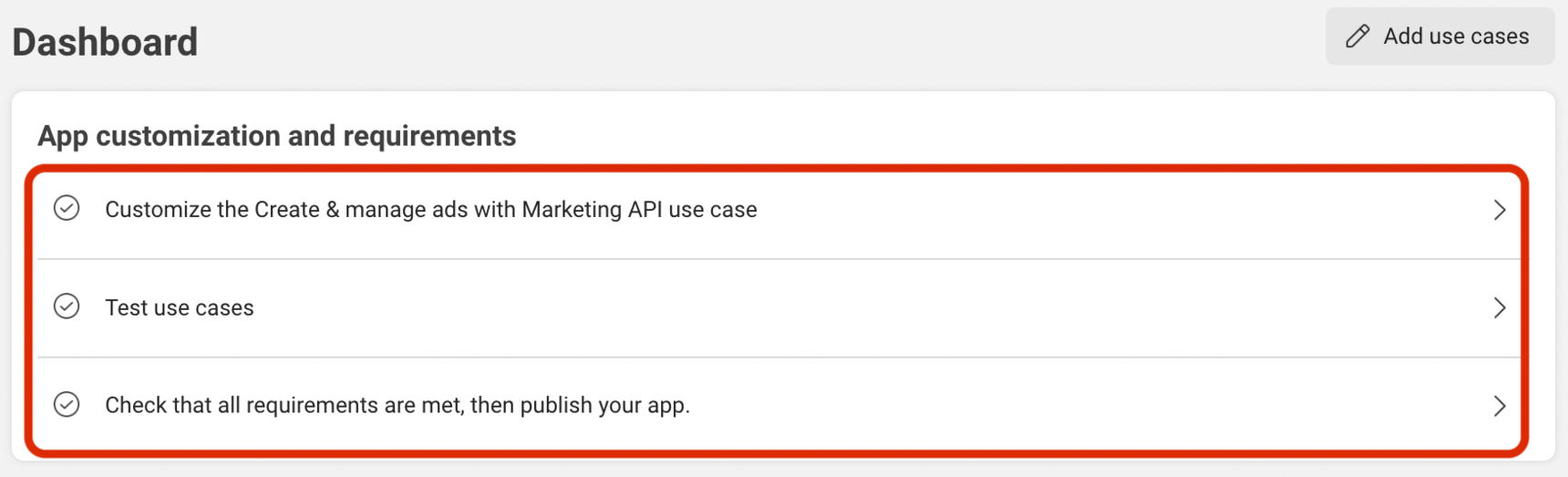
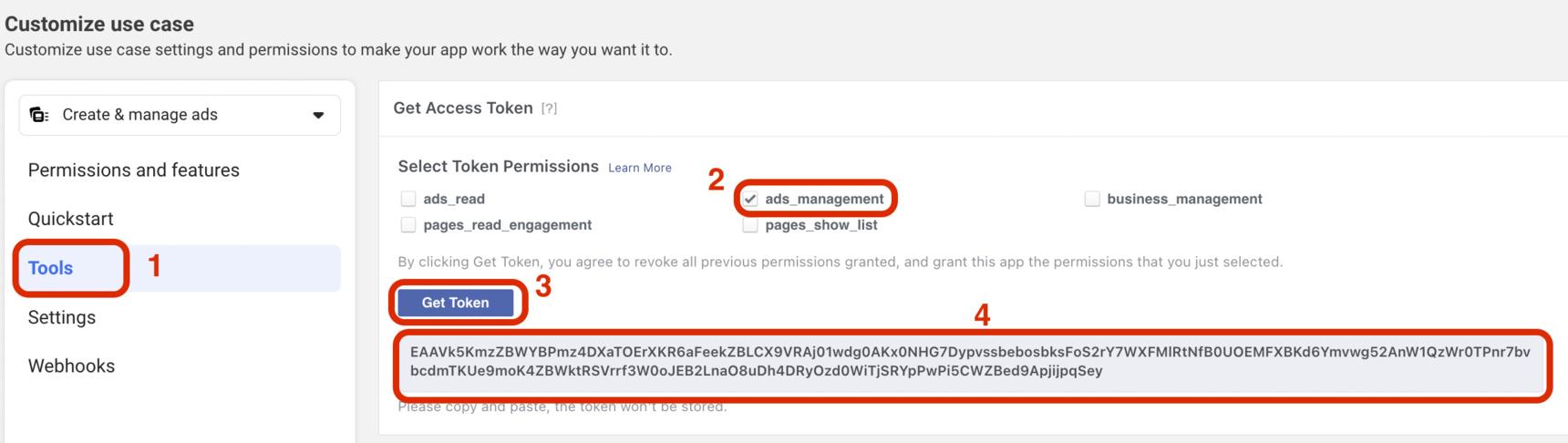
- Begin by selecting the first option Customize the Create & manage ads with Marketing API use case.
- On this next screen, 1) select Tools in the left side bar. 2) Select ads_management checkbox. 3) Select the Get Token button. 4) Copy the token generated and save it as it will be used for testing shortly.
Test the Application
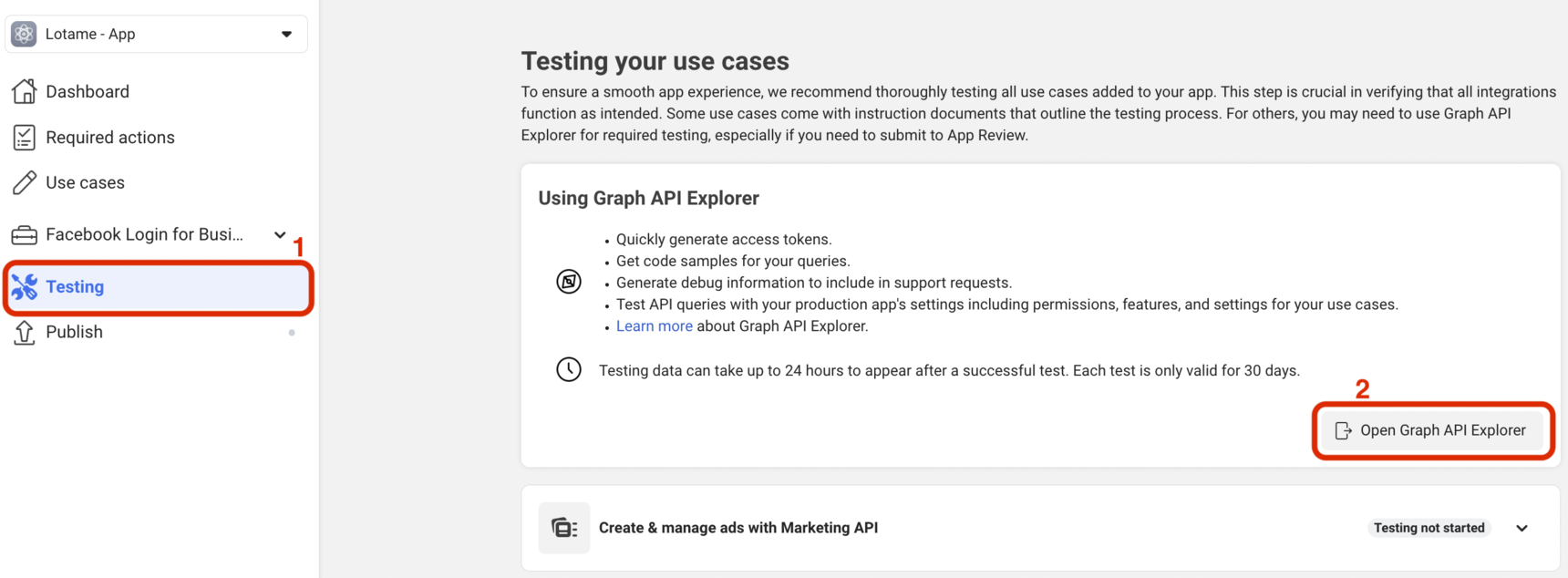
From the left-side menu, select the Testing selection followed by the Open Graph API Explorer button.
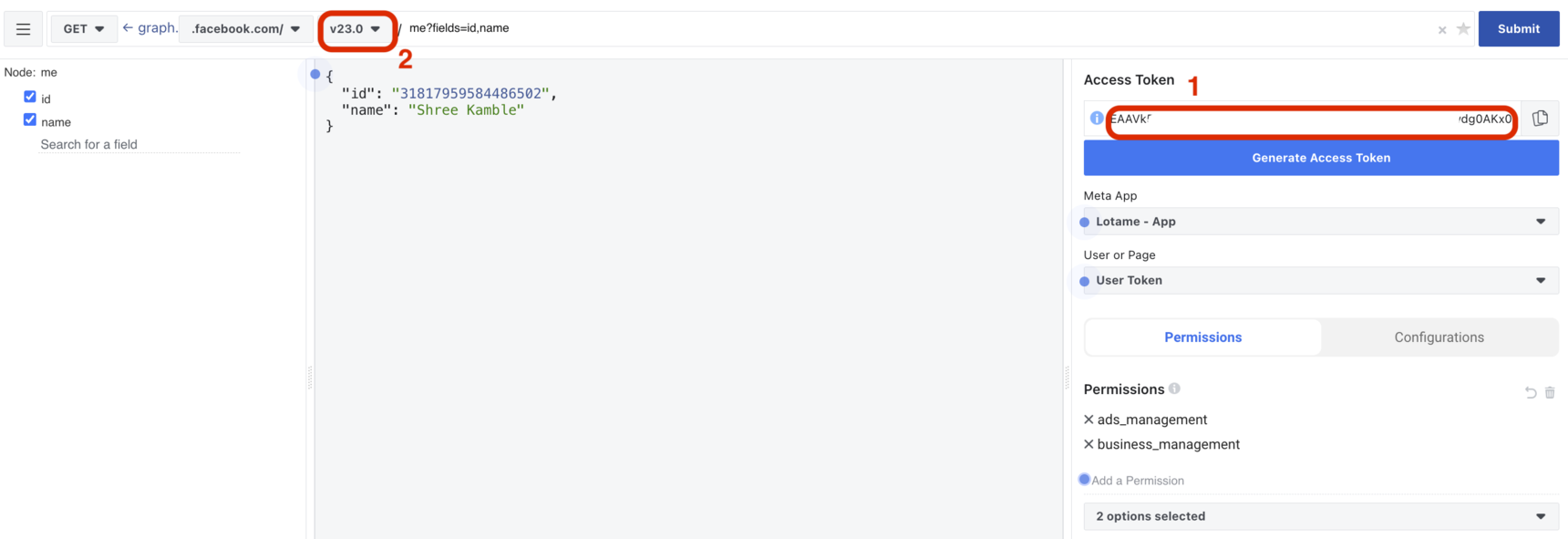
In the following screen perform the following:
In the new window, 1) paste the previously saved token into the right panel placeholder, then click the Submit button.
Review the response in the left panel:
A valid JSON response in the center panel confirms successful token generation.
If no response or an error appears, re-paste the token and retry.
Record the 2) API version number specified at the top of the screen. In the provided screenshot example, the version is “v23.0.”
This API version is the 3rd of 4 values you need to Provide to Lotame.
Enable the Application
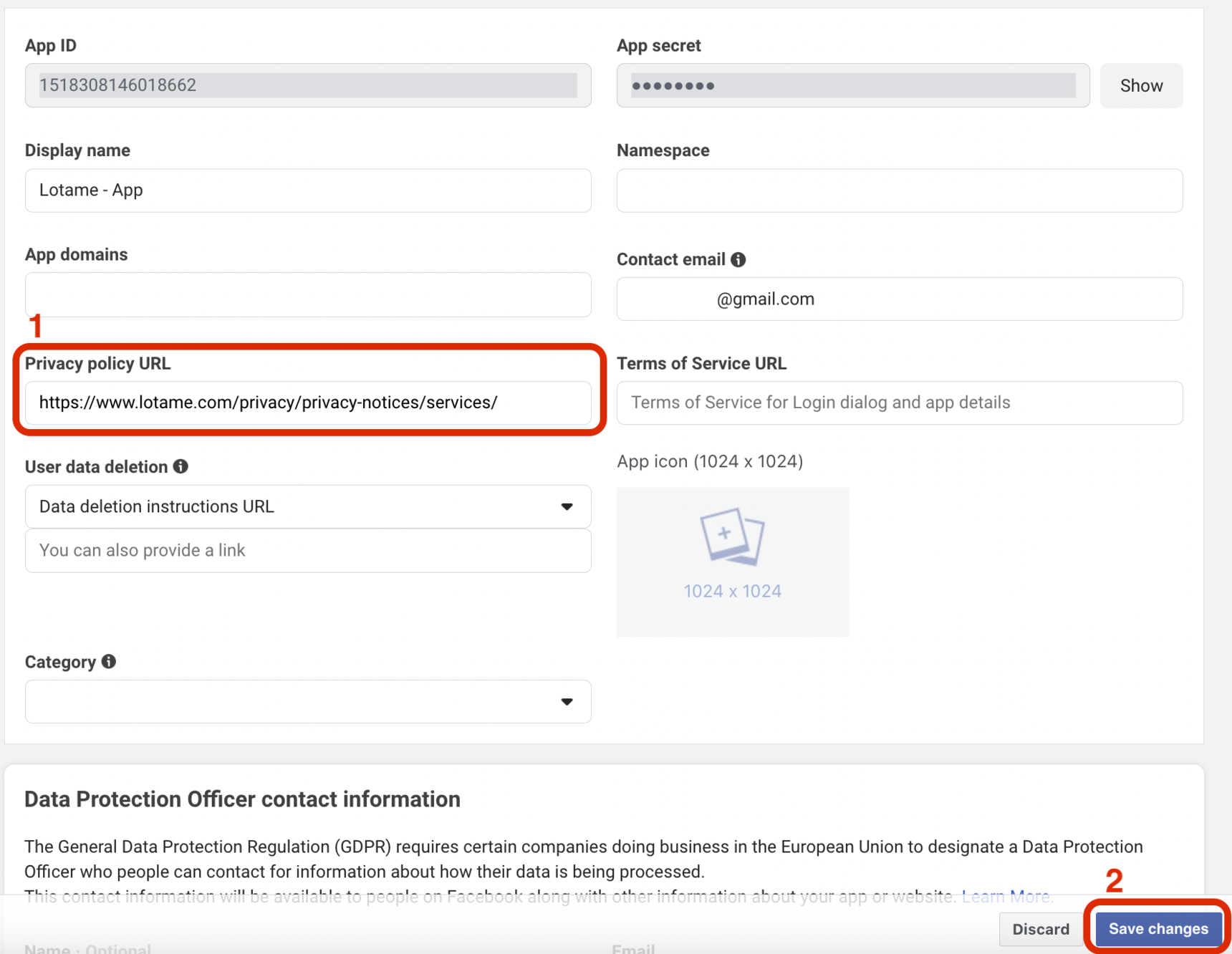
On the left-side menu, select the Publish button. On the next screen, in the top right select Go to app settings. In the screen that opens, enter https://www.lotame.com/privacy/privacy-notices/services/ in the Privacy Policy URL field.
On the next screen select the Publish button again on the left-hand menu. A 1) confirmation message will appear at the top that should tell you that all settings are complete. If you have an error here instead, please review the prior steps. Next press the 2) Publish button at the bottom to officially publish the application.
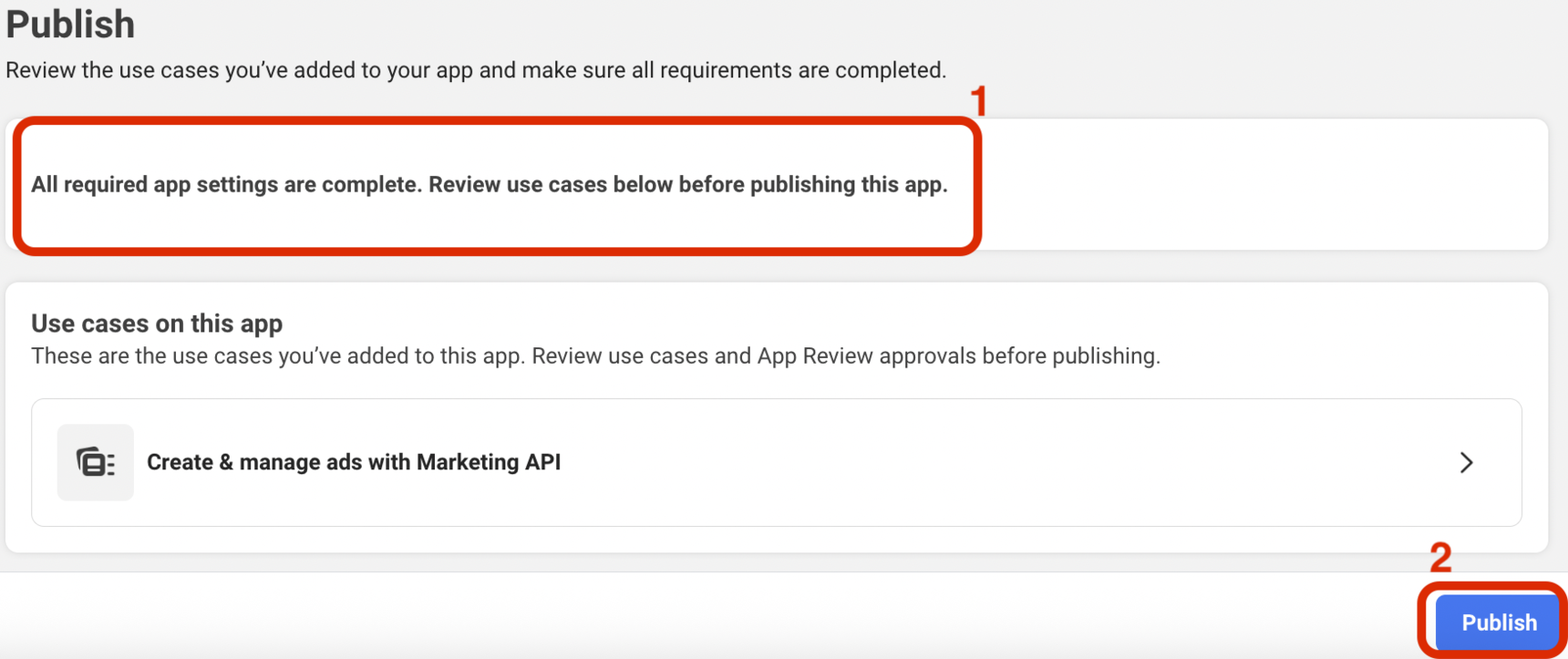
Your Application is now active.
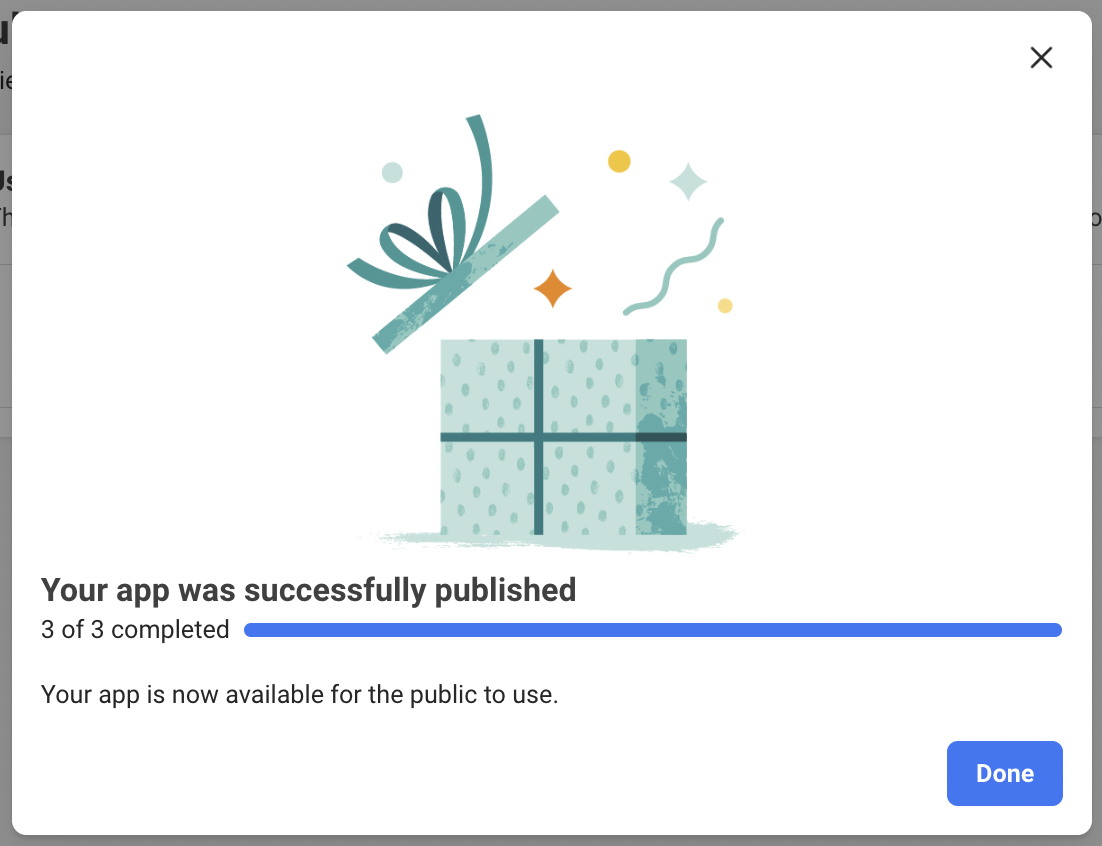
Create System User access Token
Create System User
One-time setup from your Business Manager settings for all your Meta (Facebook) Ads accounts.
- Below Users, click System Users.
- Click Add.
- Give a name to the system user ("Lotame System User," for example) and select the Employee role, then click Create system user.
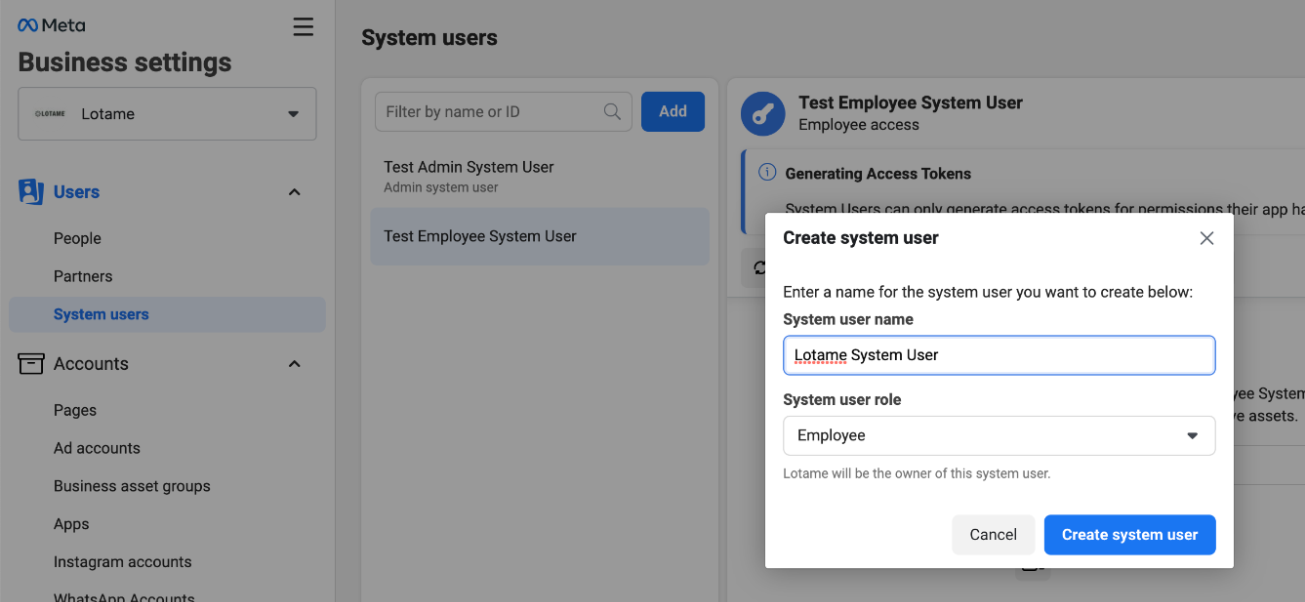
Add System User Permissions
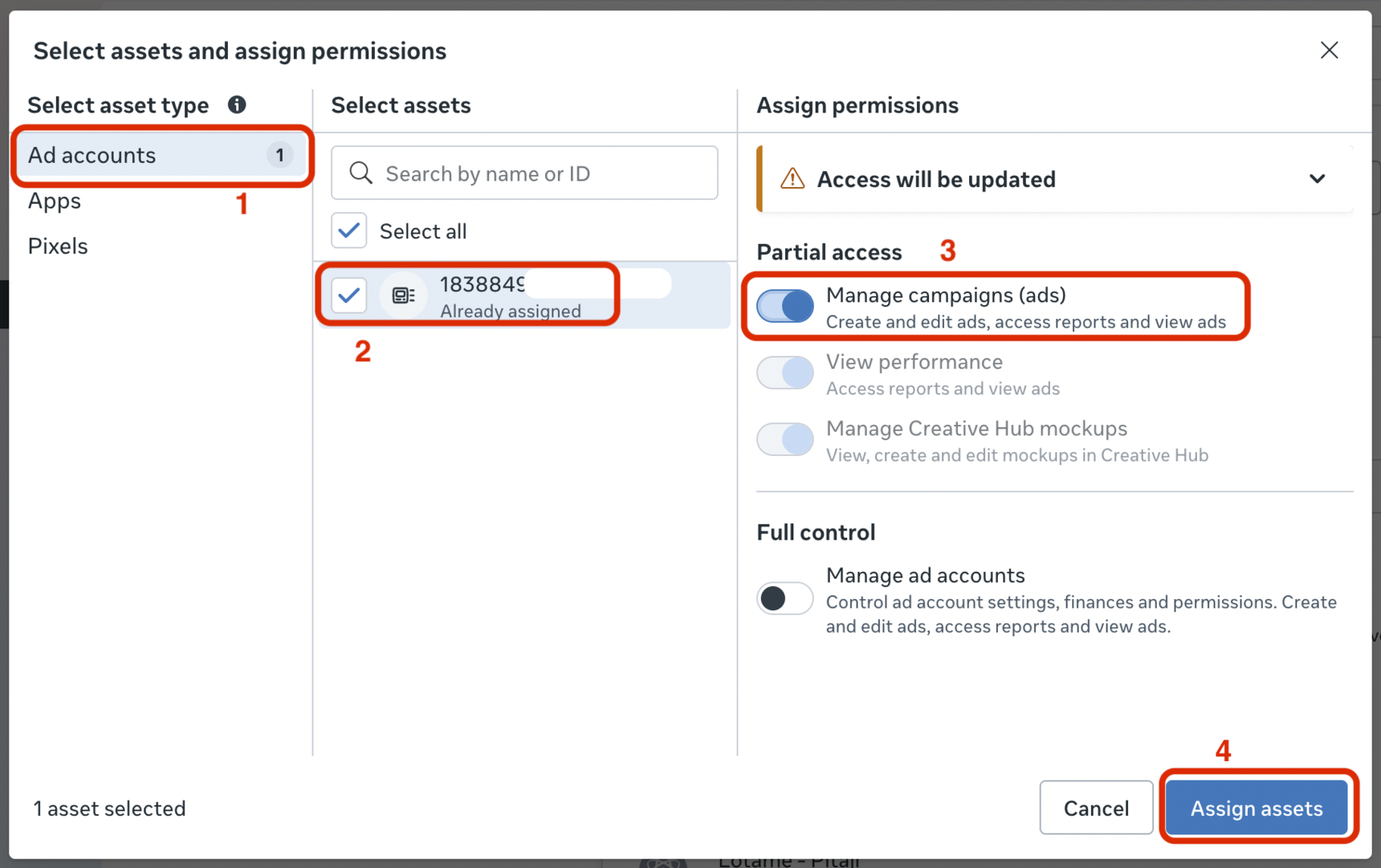
Your newly created system user will now appear under the System Users list. Select the new System User, then click on the three dots next to Revoke Tokens, and select Assign Assets.
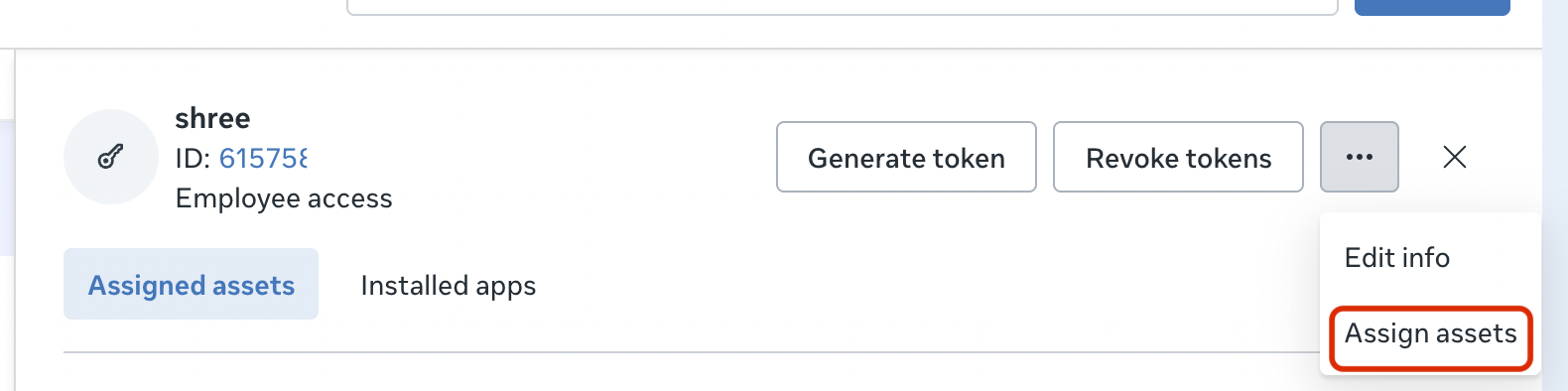
On the resulting screen, 1) select Ad Accounts from the left menu. Then 2) select your new System User and 3) grant the Manage Campaigns (ads) permission. Finally, 4) click the Assign Assets button.
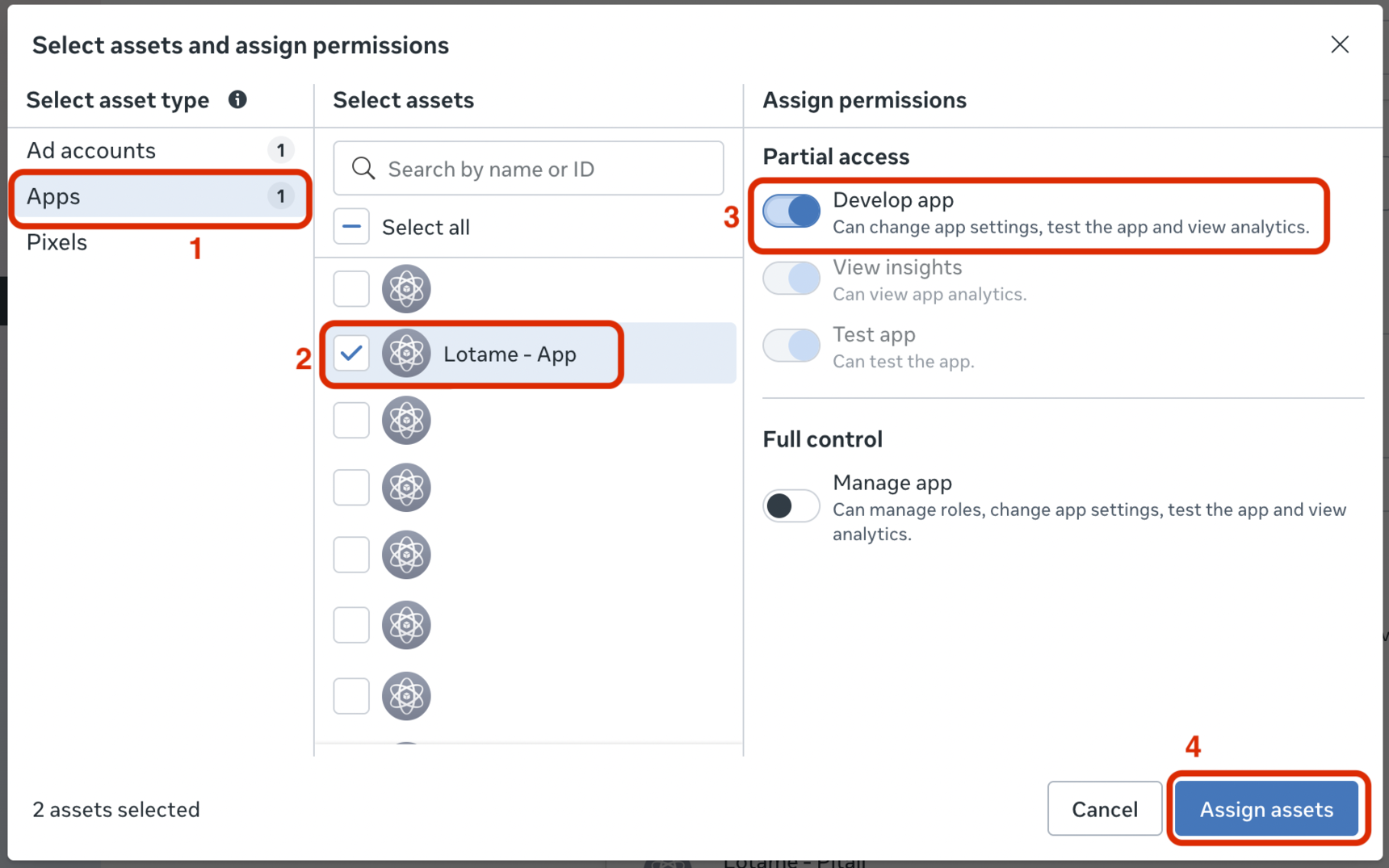
On the resulting screen, 1) select Apps from the left menu. Then 2) select your new Application created above and 3) grant the Develop App permission. Finally, 4) click the Assign Assets button.
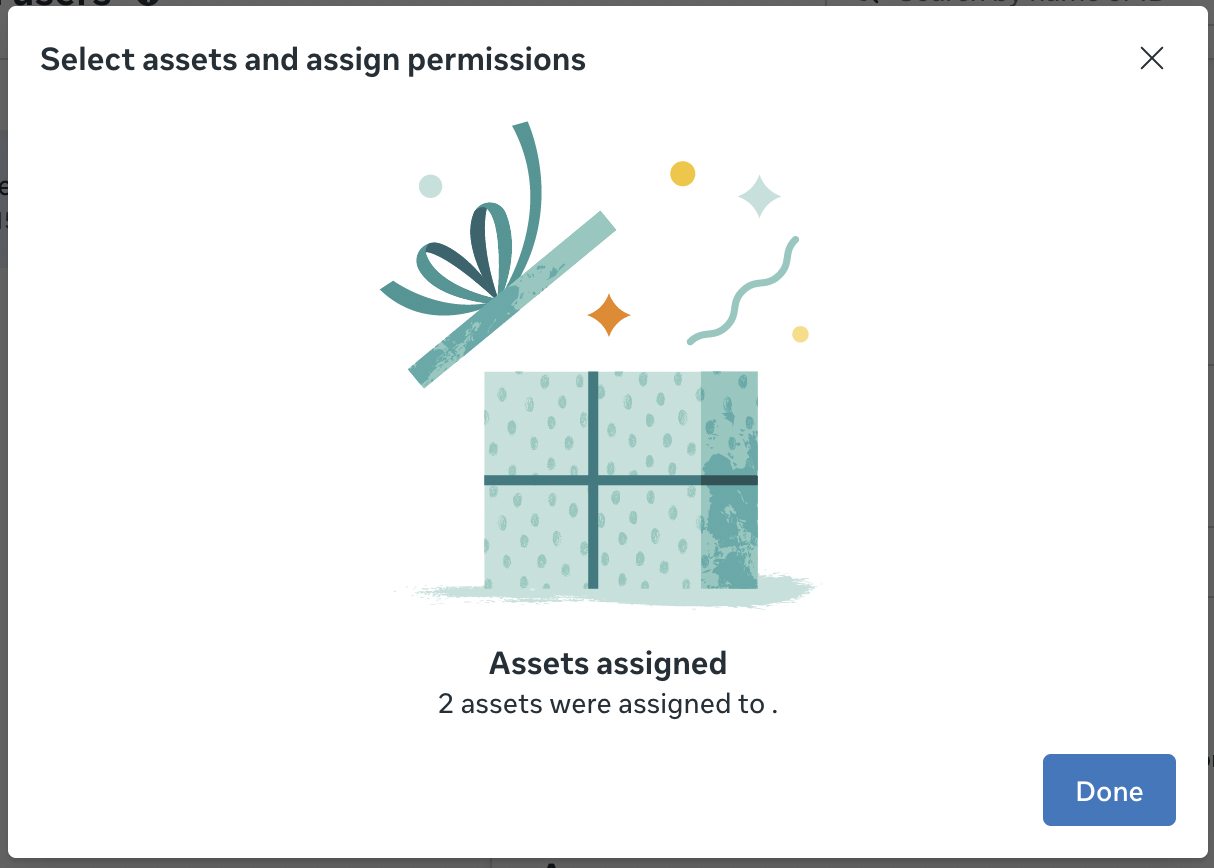
Click Done to save the changes.
Generate the Token
Select the new System User, then click on the three dots next to Generate Token.
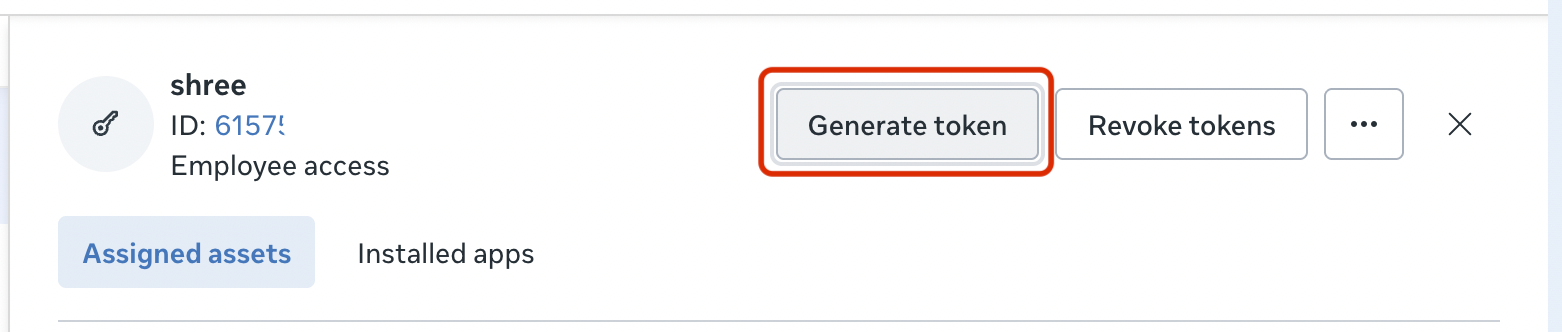
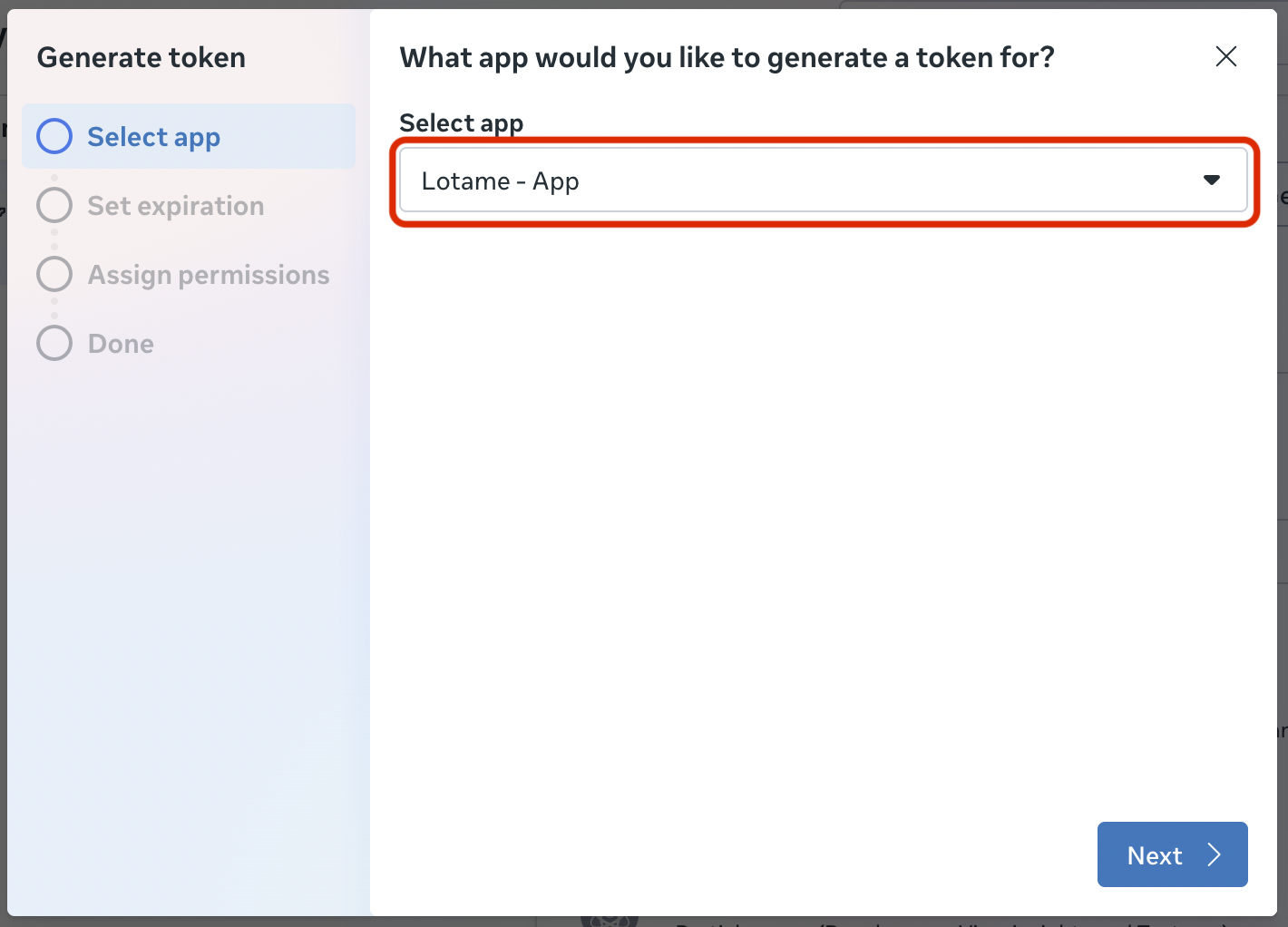
In the resulting screen, select your newly created Application from the dropdown.
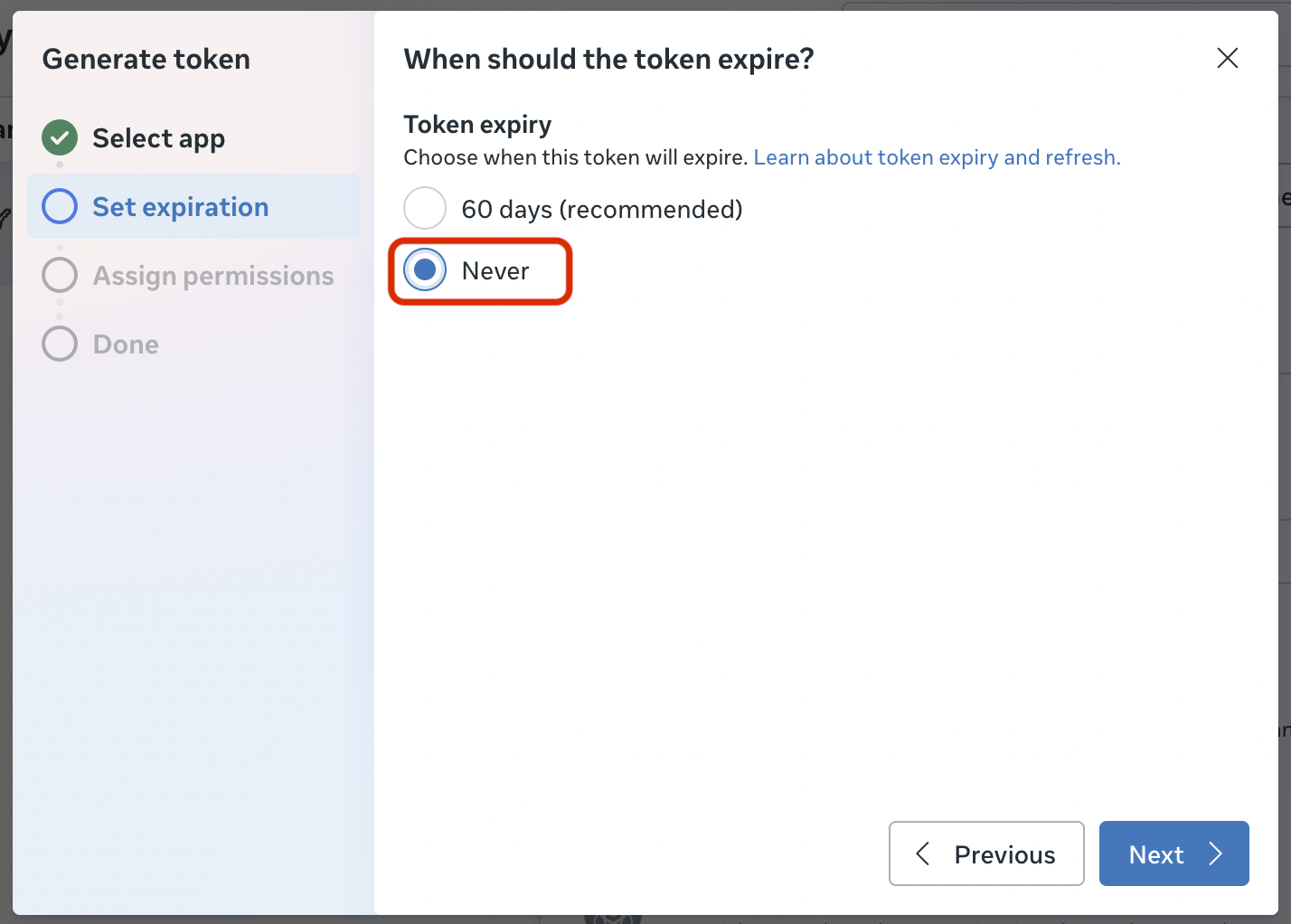
Then, set the Token expiry to Never.
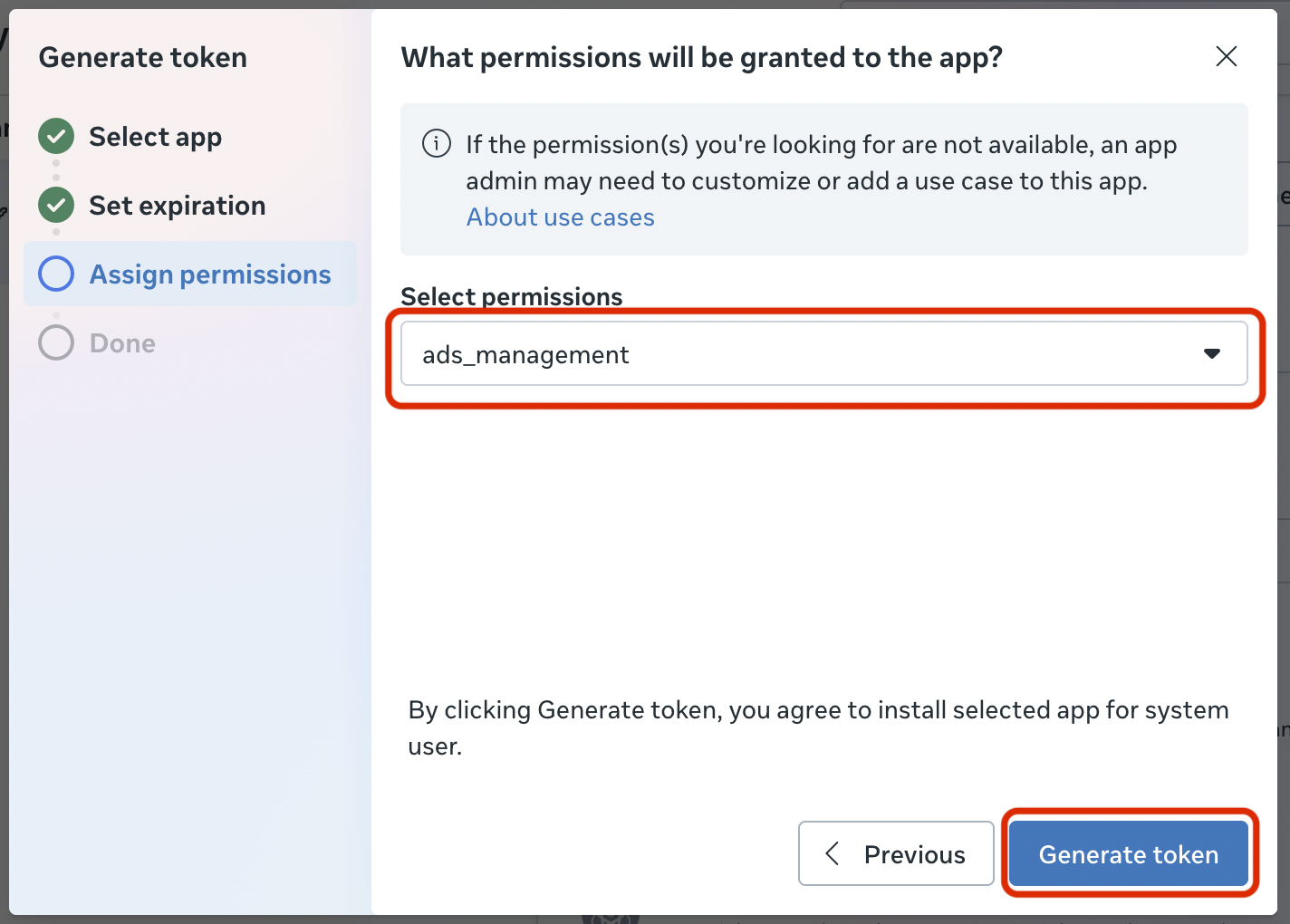
Next, select ads_management from the permission dropdown, and click the Generate Token button.
At this point, Meta may prompt you to verify your account. If it does, follow the prompts to complete it.
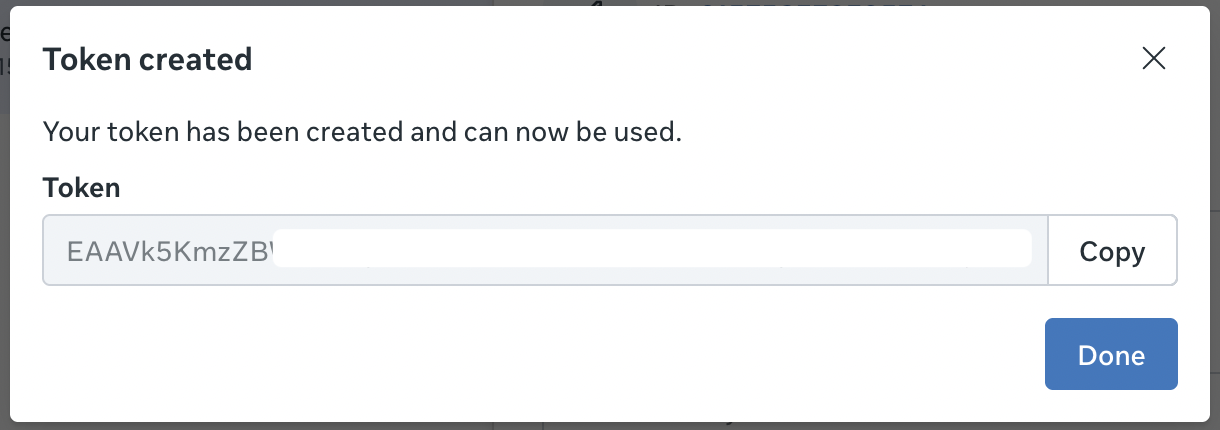
Now you will see the Token to provide to Lotame in the shared document.
Share Details to Lotame for Final Configuration
You now have all 4 values needed to share with your Lotame Representative in a private Box.com doc (provided by Lotame).
- Destination name to use in Lotame's platform
- Your Meta (Facebook) Ad Account ID
- API Version
- Meta (Facebook) System User Token
Your Lotame representative will create a shared document with you to securely pass the relevant information. DO NOT email these details directly, or they will be considered compromised, and a new key will need to be generated
Remember to accept Meta's Custom Audience Terms Of Service in your ad accounts view at https://business.facebook.com/ads/manage/customaudiences/tos/?act=<ANY_AD_ACCOUNT_ID_YOUR BUSINESS_OWNS>, or exports will fail. (Please note that this is a one-time action)
Once your Lotame representative confirms your account is configured on the Lotame side, you can begin requesting custom audiences.
Please contact your local Lotame Data Sales Representatives for custom audience inquires:
North America • USCANdataRFP@lotame.com
EMEA • EMEAdataRFP@lotame.com
LATAM • LATAMdataRFP@lotame.com
APAC • APACdataRFP@lotame.com
Adding Additional Ad Accounts
To add one or more additional Ad Accounts, you will perform all of the above steps minus creating a System User. You re-use the existing System User and provide it access to each additional Ad Account you create.
As above, work with your Lotame Representative to provide these values for each additional Ad Account.
- Destination name
- Your Meta (Facebook) Ad Account ID
- API Version
- Meta (Facebook) System User Token
Content aside
Categories
-
- Managed Service Customers
- Social App Audience Activation - Data Marketplace Buyer
- Managed Service Only Technical Implementation: Meta - Create Application and Retrieve Token (v2)
- Managed Service Only Technical Implementation: Meta - Create Application and Retrieve Token (v1)
- Managed Service Only Billing Implementation: Meta Ads Manager
- Managed Service Only Technical Implementation: Meta Ads Manager
- Managed Service Customers
- 8 mths agoLast active
- 364Views
- 1 Following